Product Description
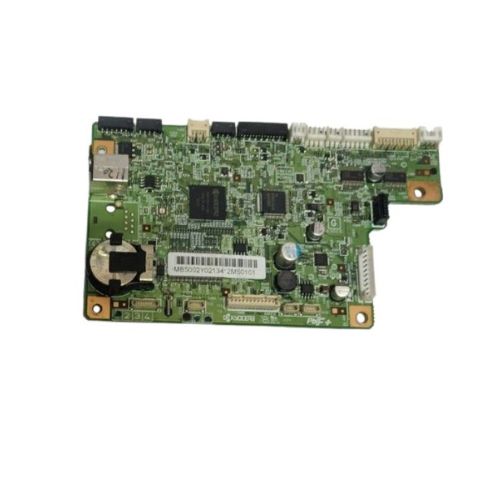
Restore the performance of your Kyocera Ecosys FS-1020MFP printer with this Formatter Board / Logic Card. This main control board manages all core functions of the device including USB connectivity, print processing, and communication with other printer hardware.Ideal for printer repair technicians, service centers, and users looking for cost-effective solutions to bring their device back to life.
Compatible KYOCERA Model:
- KYOCERA Ecosys FS-1020MFP/FS1020
________________________________________________
Part Numbers :
________________________________________________
Also Known As:
- Formatter Card / Logic Board / Main PCB Board / Motherboard / MPCA / MLC / Main USB Board
________________________________________________
Product Condition:
-
Refurbished Original / Pulled Original / Working Original
-
Professionally cleaned, tested, and fully functional
-
14 Days Replacement Warranty
High Compatibility and EfficiencySpecifically engineered for the Kyocera Ecosys FS-1020MFP printer, this logic card ensures seamless compatibility and enhances printer performance. Its robust build and solid pattern contribute to efficient, trouble-free operation for both personal and professional printing needs.
Quality Construction and Smart StorageFeaturing good quality materials and a distinct green color, the logic card stands out for durability. For best results, it should be stored in a dry environment, preventing moisture-related issues and maximizing the product's lifespan.
FAQ's of Kyocera Ecosys FS-1020MFP Logic Card:
Q: How do I install the Logic Card in my Kyocera Ecosys FS-1020MFP printer?
A: To install the logic card, turn off your Kyocera FS-1020MFP printer and unplug it. Follow the manufacturer's service manual for precise steps. Handle the card with care, insert it into the designated slot, and ensure it is securely connected before powering the printer back on.
Q: What is the main benefit of using the Kyocera Ecosys FS-1020MFP Logic Card?
A: Using this logic card guarantees smooth printer functionality and reliable performance. It helps maintain consistent output quality and reduces the risk of operational issues, ensuring your Kyocera FS-1020MFP performs optimally.
Q: When should I consider replacing my printer's logic card?
A: Replace the logic card if your Kyocera FS-1020MFP exhibits frequent error messages, inconsistent performance, or hardware malfunctions that troubleshooting can't resolve. Consult a qualified technician when in doubt.
Q: Where should I store the Kyocera Ecosys FS-1020MFP Logic Card when not in use?
A: Store the logic card in a dry, dust-free place, away from moisture and extreme temperatures. Proper storage maintains its quality and ensures it's ready for installation when needed.
Q: What is the installation process for the logic card?
A: The process involves switching off and unplugging the printer, carefully accessing the card compartment, and following the placement instructions for your Kyocera FS-1020MFP model. Ensure the card is firmly fixed and reassemble all covers before reconnecting power.
Q: How does the Kyocera Ecosys FS-1020MFP Logic Card improve printer usage?
A: By integrating seamlessly with the FS-1020MFP model, the logic card supports stable and efficient printing, reducing downtime and supporting continuous workflow in busy office environments.



 Send Inquiry






 Send Inquiry
 Send Inquiry
 Send SMS


 English
 Spanish
 French
 German
 Italian
 Chinese (Simplified)
 Japanese
 Korean
 Arabic
 Portuguese